Timeout in Power Automate Approval
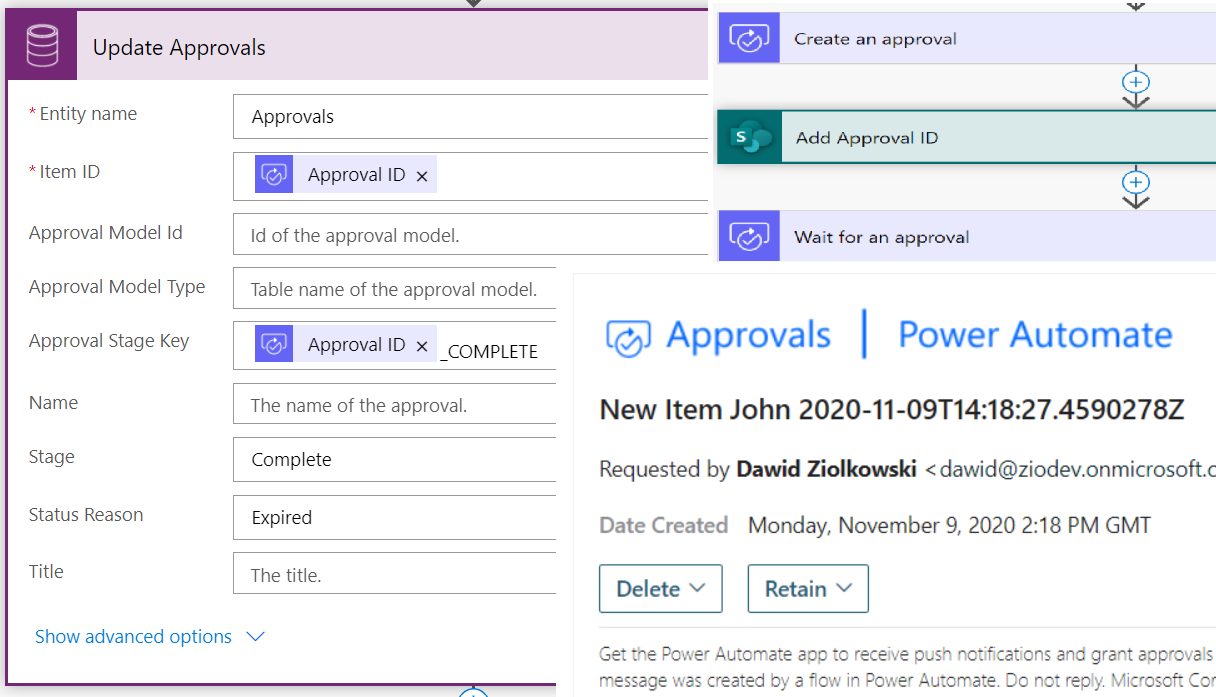
Timeout in Power Automate Approval
Timeout in Power Automate Approval is setting which is allowing control what will happen when Approver will not act on time.
Default value is empty and it equals time of how long Flow can run so 30 days.
But did you know that even if Flow will timeout Approval task is still ACTIVE?
For me this is a HUGE deal as from User perspective I could:
- Try to act on the Approval which already is Timed out and then I wouldn’t see any result as on the Flow level actions already happen and process finished…
- On my Approval dashboard I would see tons of the Tasks and part of them are empty / inactive / outdated = I shouldn’t see them in first place…
In other words it is creating bad User Experience and mess…
In this blog post I will demonstrate how to change Approval task from active:

to inactive:

As the User I will also not see this Task in my Approval Dashboard anymore.
I will manipulate data in CDS (Premium connectors) so be sure that your ACCOUNT have proper license.
CDS Current Environment in the scope of MS Teams shouldn’t generate extra cost and need for additional license.
Scenario
Imagine the process where I need to complete my task in 3 days and if not process will finish without Approvers decision as I configured Timeout setting. In addition Flow will set the Status of item to Approved = silence as acceptance.
After 4 days I’m backing to the task see that task is still active (assumption there was not follow up email). Clicking Reject but item is already Approved a day ago. As a result I’m confused…
Now I hope you are starting to feel how Timeout in Power Automate Approval is important. I will now move to initial setup of my Flow and then will show solution for this challenge.
Initial Setup of Flow
Firstly I will not use the Start and wait for an Approval action but combination of two actions Create an Approval and Wait for an approval:

I’m doing this like that as I notice property of Approval Id is blank when use Start and wait for an approval. And I need to have access to Approval Id that configuration is also giving me extra options which I will try to explore in next post.
My process Approval action Timeout setting would looks like this:

Timeout is in ISO8601 format – look in the durations sections to understood values.
Next I want to add control of what will happen when Timeout will be execute. To configure this I will add parallel branch on the same level where Approval outcome is checked:

Next depending on the process you are adding the action to new branch (Timeout). For me it will be Update of SharePoint Item. In this action I’m clicking setting and selecting Configure run after. Selecting has timed out:

With that I configured update of the SharePoint item after 3 days if Approver will not take any action. Of course this is only demonstration and your process can have more complex logic.
Solution
After setting up initial part I need to update the Approval record to also Timeout it. I learned that Approval records are stored in CDS database in 3 entities (tables) – I only need to work with only one called APPROVALS.
Base on the trial and errors I notice that ACCOUNT which you want to use for the next steps need to have at READ & WRITE permissions to Approvals Entity (Table):

If this is Admin account then you don’t need to worry but be sure not to share the Flow with too many Owners.
Backing to the main thought I need to update Approval record and to do that I will use Update a record action:

As the Entity (Table) Name I will select APPROVALS.
As the Item ID I will look for the Approval ID of the action Create an approval.
And change following properties:
- Approval Stage Key – This is not mandatory but will make the record align with other records = avoiding mess in DataBase
- Stage – Is the key information for the system
- Status Reason – Another optional information if you are connection Power Bi with Approvals then it is good to populate it to
- Completed On – Basically the date when Task has been closed, worth to add for the same reason as above
- Status – Second the most important property for the system
Here I added small comparison between initial values of the properties with values which I want/need update:
| Property | Initial value | Update value |
|---|---|---|
| Approval Stage Key | ApprovalID_BASIC | ApprovalID_COMPLETE |
| Stage | Basic | Complete |
| Status Reason | Pending | Expired or Completed |
| Completed On | EMPTY | function utcNow() |
| Status | Active | Inactive |
Especially interesting I’m finding Status Reason as if I would build Power Bi dashboard a I could track what happen and cover more scenarios:

Considerations
I’m sure that there is plenty to explorer in this scenario and with Timeout in Power Automate Approval before moving forward I would like list couple point which are in my mind and can affect this solution:
- If you will provide not existing Approval Id new record will be created – quality of your data will suffer
- Manipulation in Approvals data are connected with extra license to use Premium connectors unless you are using CDS Current Environment connector in MS Teams
- I’m not sure how Adaptive Card posted to MS Teams will behave – will test that and update the post with the info
- Waiting for finish of the test if the Timeout value is blank (30days) not sure if the Timeout branch will work or Flow will just finish… workaround is to set Timeout to value of P29DT59M (29 days 59 minutes)
Conclusion
I hope you like it this easy method to close the Approval task in your solutions. Timeout in Power Automate Approvals is powerful and enables a lot of interesting scenarios but without timing out Approval task on the CDS level it creates quite a lot challenges.
In the end it is just one action to make the process cleaner and better for your Users.
4 thoughts on “Timeout in Power Automate Approval”
Comments are closed.
Thank you very much for this article! It really helped me.
As a additional information I might add that I was checking the behaviour of the Adaptive Cards in Team and it seems that it is useful to update also the ‘Result’ field in the Approvals table. Otherwise in the Adaptive Card the status will remain as ‘Requested’ but no buttons (Approve/Reject) will be visible anymore.
In my case I set the Result=Canceled, then this status is also visible in Teams, so it does not bring any confusion to the Approver.
Best regards,
Andre
Thanks Andre, glad that it helped you. Also thank you for your remark, I will make quick testing and update content for sure 🙂
Regards
Dawid
Hi Dawid,
Did timeout branch worked when timeout was not set for an action (timeout is blank)?
Hi Julia,
Flow will time out automatically after 30 days, if in your configuration you have in the active action branch where run after is setup then the process should execute actions. Yet, this is my assumption 🙂 I will prep test instance and report back in next 30 days ^^
Regards
Dawid