Power Automate Do Until
Power Automate Do Until
Power Automate Do Until I feel as function which is not used too much while building Flows. Also notice that there is not a lot of documentation about it. Therefore, decided write what I know about it and hope this will help people to understood it better.
Content of the post:
In the next blog post I will cover how I use it in my Flows.
Basics
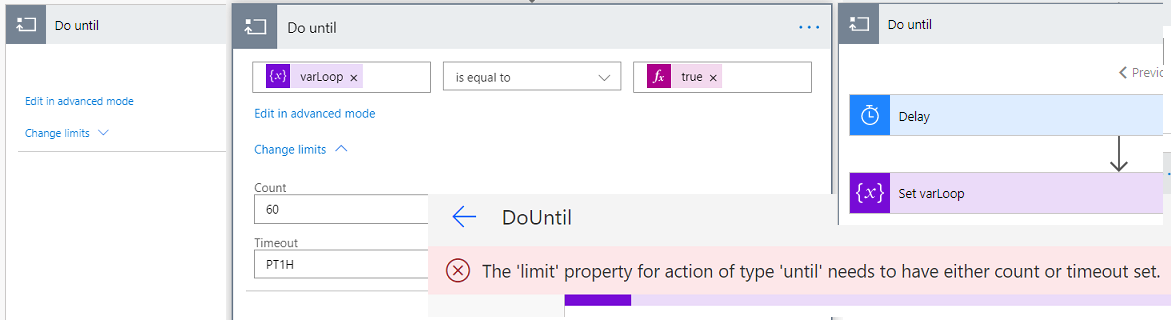
Do Until is one of the actions which is under Control group and after adding it to the Flow I see:

I can setup condition: if it’s value equals TRUE it will stop loop execution. I will call it Loop Condition. This the place where I think people are making mistakes. Especially if they are starting Power Automate journey.
Do until will ALWAYS run at least once as the condition is checked at the very END of loop execution.
Check out proofs section to see how it is working and how to avoid such behavior.
Changing limits
Next what I can do with Do Until loop is to change its limits:
- Count
- Timeout

Count
It is the value of how many times the loop will execute and after reaching the value set in Count will finish. Default value is 60 it means that loop will execute 60 times = it will be 60 times checking Loop Condition.
Therefore, if I would set Loop Condition which never be met loop wouldn’t stop without Count limit.
NOTE
Max value for Count is 5000
Keep it in mind that the loop will stop when Loop Condition is met OR when will reach Count value.
Timeout
Timeout after Count is the second property. It is a value which I can use to stop loop if the Loop condition is not met.
Default value is PT1H it is means 1 Hour it is ISO8601 format.
HINT
ISO8601 is also used to define Timeout of other actions for instance Approvals.
P (period) is always at the front, next elements depends on if I’m working with days, hours, minutes (assume that this are the most used values).
Examples:
- P4D – stands for 4 days, capital D is day unit
- PT4H – equals to 4 hours, capital T is “switch” of time units
- PT4M – equals to 4 minutes
- P4DT4H4m – is 4 days, 4 hours, 4 minutes
Don’t make a mistake P1M is one month not one minute (PT1M).
NOTE
Max duration / timeout value is P30D – 30 days
With Timeout property in the configuration loop will stop if Loop Condition is met or Count number or Timeout duration is reached.
Remove limits
If I tried to remove both Count and Timeout I would get the following error:

However, if I try to set Count OR Timeout there is no error, so the loop will work with only ONE limit set.
That makes Do Until quite flexible as now I can set the configuration of the loop to finishing:
- When Count OR Loop Condition is met
- When Timeout OR Loop Condition is met
That covered the basics of Do Until configuration in my opinion.
Proofs
Now it is worth to show couple examples/proofs of what I explained in text above.
Loop Condition is checked last
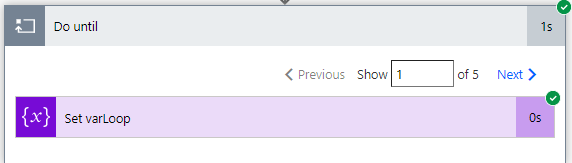
Configuration which I made is quite easy one variable and loop which will finish if varLoop equals false or after 5 runs (Count) or after 1 day (Timeout). In the loop itself added one action to set varLoop to true:

Execution result, condition was not met and loop finished when Count limit(5) was reached.
Workaround to check condition first
That might be bizarre construction but maybe somebody will use it. I thought that the way to check the Loop Condition first is to just add in the loop extra condition action:

I made only one adjustment of adding the condition checking if varLoop is equals to false (Loop Condition repeated) if not changing varLoop to true.
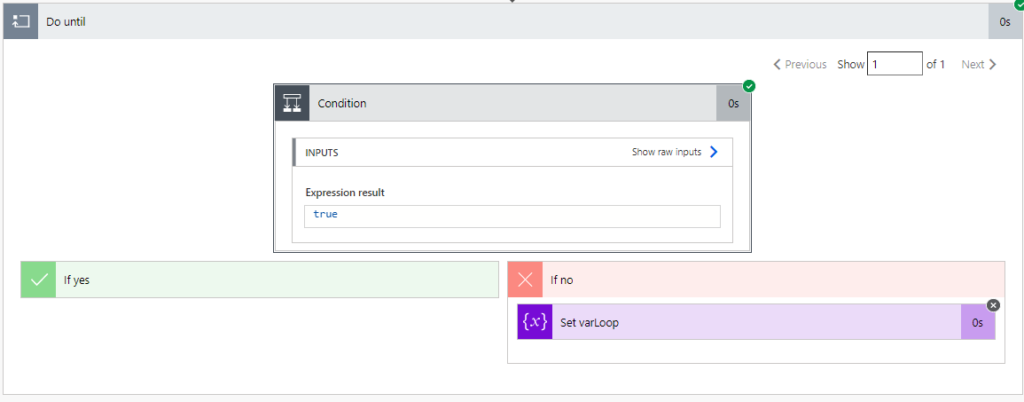
As I thought loop executed only once as at beginning of the execution action condition was checked which simulated checking of Loop Condition.
Timeout will finish Loop if Loop Condition is not met
Firstly I used almost the same configuration of the loop but added in it a delay action of 1 minute and set 1 minute as the value of the Timeout property:

As I expected loop was executed only once due to reaching Timeout value after first delay action:

NOTE
If I set Delay action to take longer than Timeout value the loop will finish when Delay action time runs out.
Summary
To finish of this blog post I will repeat the key info:
- Loop Condition is checked last, first all actions in loop are executed
- Loop will finish when Loop Condition is met or Count / Timeout value is reached
- As loop limit you can use Count and/or Timeout
I hope this will be useful and help you understood Power Automate Do Until. With that maybe Do Until will be more often used.
In the next blog post I want to cover pattern how I use Power Automate Do Until so stay tuned.
References
If you are interested in this topic you should also check:
Hello, Dawid!
The article is cool. I’ve fixed my flow due to this article.
But have you ever heard of the Grammarly Chrome plugin? I suppose it’ll be even more pleasure to read your articles if you try the tool once ) Please no offense.
Hello Andrii,
Glad that it helped you.
No taken – it is definitely good idea to improve the content. With dyslexia I should use such plugin for a while:P
Regards
Dawid
Thank you! Thank you! This was an excellent article especially since you took the time to explain the different time expressions.
One thing that might be helpful to add for us newbies is that the do until loops run instantly over and over until they reach the specified limitations.
I didn’t know that and didn’t know if there was a built in pause between or even if I could have added one.
I did figure it out though.
Thank you for your comment. I am very glad that this articles was useful for you.
I will make an update in the post to reflect your remarks.
Excellent article, exactly what I was looking for !
Thanks for explaining the workings of the Do Until loop mate.
Hi Dawid,
Thanks for a very useful and concise article.
Do you know if Dataverse calculated columns are allowed in ‘Do until’ actions?
I’m guessing not, because I added one, and I am getting a ‘There are no actions in this Do Until scope.’ message in the run details.
Hi Donal,
Thank you, I happy that this article is useful for you.
I’m not sure if I understand your question. If you did not add any action into Do Unitl loop you will see this information.
To avoid such case just try to add compose action and type something like “test” and see if the Flow now is executing correctly.
If this is not it, please let me know and provide a little more details.
Regards
Dawid
Hi Dawid,
thanks a lot for this nice summary.
Maybe you can help me even more, because I really don’t get it in your workaround with the condition.
Your Flow:
1) set varLoop = false
2) DoUntil “varLoop is equal to false” with Count limit 5
2.1) Condition “varLoop is equal to false”
a) If yes: do nothing
b) If no: set varLoop = true
RESULT: Loops only 1x times.
Why? Because you have entered a condition?
If you only change the variable varLoop to true in 2.1b, than the variable is never be changed, because the condition in 2.1) will always lead to a) “do nothing”
And as I can see in your screenshot, the DoUntil does only one loop, but the variable is not changed.
That’s also the reason why your example runs exactly the same if you remove the action in 2.1b)
So I’m totally confused. I cannot trust DoUntil because one time it runs until the limits, but if I use a condition inside the Loop, it is checking the DoUntil-Condition?
I really hope you get my point and can help me with that.
Hi Max,
Thanks for your detailed question 🙂
In general, Do Until will stop if Loop condition will be meet OR Count will hit the limit OR Timeout will be reached.
Do Until will always run at least once, but the Loop condition is checked at the very end of the execution, not at the beginning.
If you would like to check Loop condition at the very beginning of the Do Until loop execution, you could add Condition (additional action which copies loop condition) in the loop. Thanks to that, even if Do Until runs once actions will be executed or not (depending on the condition action) in some scenarios this is very useful to secure not execution of the actions 🙂
Hope it makes sense 🙂 feel free to ask more questions if something is unclear.
Regards
Dawid
Thanks for your reply. But that didn’t help me 😉
I’m just talking about your workaround with the additional condition-action inside. Everything else is clear. I “only” don’t understand why your workaround loops only 1 time, because your variable isn’t changed. So I would assume, that it loops 5 times – the same as if you wouldn’t use the additional condition-action.
Hi Max,
Ok, I get that now 🙂
First proof was showing that Loop condition is checked last. Inside the Do Unitl I set the Exit variable to opposite to Loop condition. Due to that, Do Until executed 5 times = Loop Condition was checked after setting variable.
Second proof:
In the first step I already had my Exit variable set to false which was the Loop Condition (remember Loop condition is checked last).
In the Do Until it run the Condition action (which was meeting the criteria Exit variable was false, logical test result true) and displayed the result in the designer, Exit variable was not changed.
After that Loop Condition has been checked and Do Until finished because Exit variable was false (did not change to true because of the Condtion action).
With that Do Until executed only once. And here I’m backing to my previous answer: This is useful as Do Until will be always executed at least once and adding Condition action is a way how to prevent Actions in the Do Until to be executed 🙂
Thank You.
This confirmed what my issue was. I’ve been scratching my head all day. I tested the flow several times, yet when it went out into the big wide world it only looped once because the delay in the loop was > 1 hour.