How to parse JSON faster in Power Apps
How to parse JSON faster in Power Apps
I was so hype when I read that Parse JSON in Power Apps function is available. For me, it was the missing piece, especially that I like to play with data models.
If you did not read about it yet, here is the documentation:
ParseJSON function in Power Apps (experimental)
And blog post with announcement:Power Fx: Introducing ParseJSON
NOTE: ParseJSON is still experimental feature!
Table of content:
JSON App
To understand better Parse JSON in Power Apps I create simple application. You can download JSON App from my GitHub here.

Application allow to:
- Capture the data from two text inputs controls and save them to collection with two properties (PropertyText, PropertyNumber)
- Create variable (via Create JSON button) when User is happy with number of the rows added to collection
- Parse JSON variable back to the collection
I will not explain what is under every button, except the Parse JSON steps. If you have any question re other buttons, please write me the comment.
Parse JSON with ForAll function
As mentioned, I would like to focus on the parsing part.
In the documentation you will see an example with the ForAll function, I also prep one example:

Table function
First step or better where I think I should start is of course ParseJSON function. Next to it (around), I added the Table function.
It is like that as just after parsing your JSON data will have the untyped object type (new type introduced to Power Apps). To “assign” the type to your JSON data you need to specify it = apply conversion.
How to do it with examples: Converting Untyped object data type
In my example I use Table function as I know that my data are stored in array.
Table(ParseJSON(varJson))TIP: You don’t need to have the header of your array in JSON to work with your data.
Note: That result of the Table and ParseJSON funstions is following table with Value column:

ForAll function
As I have my data prepared I can start to work with rows of my table, for that I’m adding at the top ForAll function.
Next in the second parameter of ForAll I’m adding Collect function which will add processed data to my collection.
A key element of the ForAll and collecting data is how the new item is defined. In the curly brackets, you will see:
{
 PropertyText: Text(ThisRecord.Value.PropertyText),
 PropertyNumber: Value(ThisRecord.Value.PropertyNumber)
}
I’m basically telling that in my collection there are two columns with the names of the PropertyText and PropertyNumber.
Next to assign value to PropertyText:
- I need to define the type (remember about untyped object type) – Text function is used
- Get access to the row of data which is processed – ThisRecord
- Access the row column – Value (column generate from Table & ParseJSON functions)
- Select proper column/property which I want to extract – PropertyText
As you see, to assign value to the PropertyNumber, I need to follow the same logic.
All this steps in the ForAll will result in collection of data which I can process / use further in my Power Apps. That means if my data are stored as JSON in any place, I can “download” them and re transform to format usable in Power Apps!!!
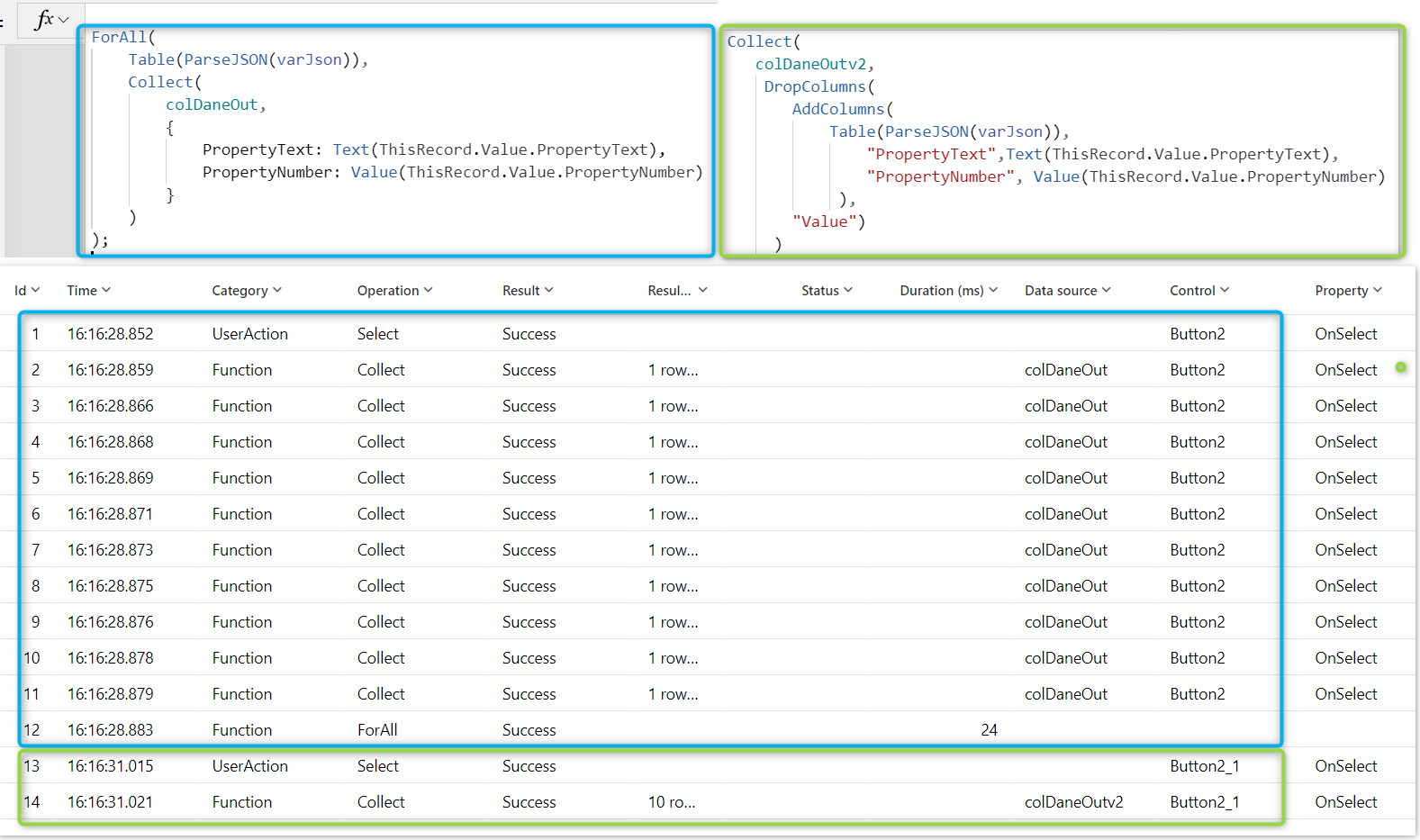
BUT I know that ForAll function is bad for performance as every operation done is one after another. You can confirm that in the App Monitor:

Faster way
I started to think how to do it faster and in a more performant way. And I came out with the following:

The result is exactly the same as in the case of ForAll, but the speed of formula is from different league as everything is done in batch:

Allow me to explain what is happening in the above formula.
AddColumns
The core of the method is AddColumns function.
TIP: To take your Power Apps game to the next level learn: AddColumns, DropColumns, RenameColumns, and ShowColumns functions in Power Apps
In the description of the AddColumns function, you can find information:
Fields of the record currently being processed are available within the formula. Use the ThisRecord operator or simply reference fields by name as you would any other value.
Description of the AddColumns function
When I added the AddColumns before the Table and ParseJSON functions I received access to the ThisRecord operator. Thanks to that I could create my columns and assign the value to them:
 AddColumns(Table(ParseJSON(varJson)),
 "PropertyText",Text(ThisRecord.Value.PropertyText),
 "PropertyNumber", Value(ThisRecord.Value.PropertyNumber)
            ),
DropColumns
As written when you use the combination of the Table and ParseJSON the Value column is created. With the DropColumns I removed it from the end result. Simply, I did not have use of it.
Collect
Collect function is used to capture the result of the processing of AddColumns & DropColumns as I want to work with this data further.
TIP: You could just use the AddColumns function in the Gallery if you would like only to work with the data there.
Summary
I really looked forward to start to work with Parse JSON in Power Apps. Now this feature is finally here. I still know that it is experimental and might cause some trouble, so please remember to not use it in production Apps.
Hope the method described in this blog will help you make the Apps more perfomant.
If you want to download the demo app from this post click here.
Wish you all the best.
Ps. It has been a while since my last post, I hope to come back to writing more frequently. A lot of happen in my family live, but it is a different story.
One thought on “How to parse JSON faster in Power Apps”
Comments are closed.
Hey David,
Nice blog post. If I do not have the structure of my response object, is it possible to use ParseJSON and get the values inside my response object. I am uploading file using Office365Groups connector’s HTTPRequest method in my Canvas App. But I would like to check the response of the method after the load to understand if it was successful or not. Do I have to have the structure of the response object in hand? What should be my way forward?