Multilingual Power Apps p1
Multilingual Power Apps p1
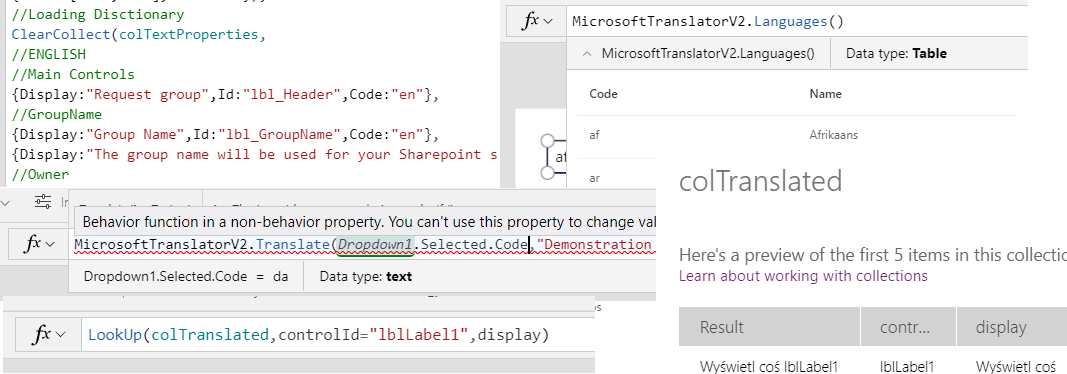
This is Multilingual Power Apps p1 on how to create such Apps and where to start. Note that it is first post connected with this topic.
Having Applications in multiple languages for some use cases is a must and for sure it is great way to increase usage and adoption of the solutions.
Content of the post:
- Introduction to Microsoft Translator
- Translation per control
- Collection and string manipulation
- Dictionary
- Summary
Result of the post will works as follows but layout / styling in the post is omitted:

Introduction to Microsoft Translator
You can use for the Microsoft Translator connector to do translation. Currently second version of it is in preview (this is very recent – like last week recent):
Microsoft Translator [DEPRECATED]
Microsoft Translator V2 (Preview)
Key difference is that first one was standard and V2 is now premium!
Next you can use this connectors in two modes with subscription key and without it:
- If no subscription key is provided, the shared API key will be used, which comes with built-in throttling limits based on the number of characters that are being translated, specifically 55,000 characters per day and 100 requests per minute.
- If you provide your own subscription key, there will be no characters limit used by the connector and the rate limit will be raised to 1000 requests per minute. In this case the Translator API will enforce limits based on your subscription (learn more here).
Yet in the article Connect to Microsoft Translator from Power Apps I found information that:
This connector is limited to 150 calls per user per day
If you will hit the limit you will see:

Ok now you know the limits of this connectors. Let’s start to do first translations and it will be:
Translation per control
The easiest way to translate your Application is to do it per control. To achieve that first add the drop drown control and in the Items property just add:
MicrosoftTranslator.Languages()MicrosoftTranslateV2.Languages()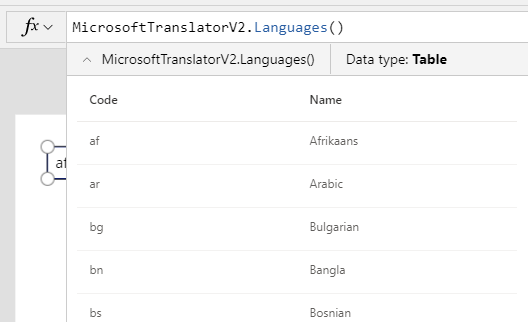
Note: In the V2 you can also add the scope and explanation of the scope can be found here: Translator 3.0: Languages
As the display value of drop down set Name that will list all possible languages.
Microsoft Translator Deprecated version
Next in the case of Deprecated connector you would just need to add in Text or any other property following:
MicrosoftTranslator.Translate("Control text",Dropdown1.Selected.Code)And that would be it although keep in mind the limit of the executions per day. And not good for performance as every control = execution of the connector:
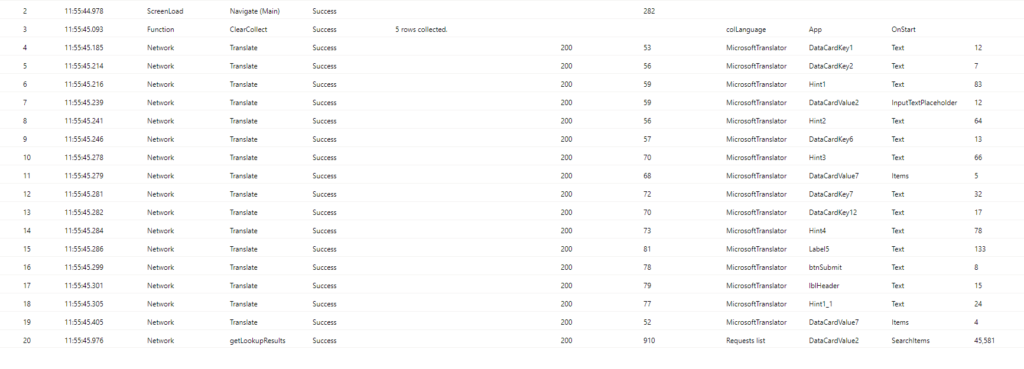
Couple changes of the language and you would easily hit the limit in blink of the eye.
Microsoft Translator V2 version
Trying to do the same with V2 would display following error:

To workaround this error you would need to “middle man” variable and somewhere execute its change for instance OnChange of drop down or OnSelect of Translate button:
UpdateContext({varTLabel1:
   MicrosoftTranslatorV2.Translate(Dropdown1.Selected.Code,"This is new translation")
})
Still it is very bad for the maintenance of the App and would require not only a lot of calls to the connector but also the same number of the variables…
Collection and string manipulation
As always when I see such situations I’m starting to think if there is other way, better way to do it. As in many other cases the answer are Collections.
General idea is to have the collection which will keep the text to translate and key which can be used to assign it to controls:


HINT
I’m using the Lookup with , in the function not with . after function and property name as this is the fastest and best for performance way to get single property from lookup.
When that is ready I need to transform collection to string and that can be done thanks to Concat funtion. Im using Char 13 and 10 to connect the items.
Note
If you want to read more about Char 13 and 10 check this blog.
Still using variable to keep the result of the translation in one place as currently don’t have to much use of it:
UpdateContext({varMiddleMan:
    MicrosoftTranslatorV2.Translate(Dropdown1.Selected.Code,
Concat(colForTranslation,display&Char(13)&controlId&Char(10)))});
When the variable is ready I’m using AddColumns and Split function a lot of it:
ClearCollect(colTranslated,
  AddColumns(
     Split(varMiddleMan,Char(10)),
     "display",First(Split(Result,Char(13))).Result,
     "controlId",Last(Split(Result,Char(13))).Result
  ))
You may think what is that. Shortly speaking each time when the Split is executed you can access First/Last Right/Left part of function result. Knowing that we can manipulate what we are “taking” (adding as new column) as the outcome/result from Split.
HINT
If you want to better understand what happen here check the last section of the documentation of Split function or the Michal Guzowski blog where he is also explaining how to use Split but in another use case.
Result of the formula will be:

Using collection I can now call connector once and have the base of the translation in one place and not keep so many variable in our Application.
Dictionary
Yet machine translation can be not perfect so we can create own translation. Thanks to such approach we have 100% control over the display.
Idea is simple at the App OnStart initialize collection with three properties:
- Display – text of the control
- Id- key to find control
- Code – language code

HINT
In my case I create dictionary in the App memory but there is nothing which is preventing you to create List or Entity which will store the information and collect data from it.
In this approach I’m totally disconnecting from Microsoft Translate connector and initialize the language collection:

Now the last bit is to update control lookup:

App now should works like this:
Yet this method main downside is that you need to apply Lookup for EVERY control although all operations are in the App memory it is not fun to update such App. Of course if you are using Form control but there is alternative.
Summary
This is the end of Multilingual Power Apps p1 and it was focus on Microsoft Translate connector and Form control.
I decided to split this post in two part as in the second part I will be showing full setup of the Multilingual Power Apps app using Infinity Form approach.
I hope that Multilingual Power Apps p1 was interesting for you I tried to show the whole journey and some pit-holes which I faced during my work so hopefully it will save your time.
One thought on “Multilingual Power Apps p1”
Comments are closed.