Get Manager error in Power Apps
Get Manager error in Power Apps
Challenge description
Recently during the work with Power Apps I faced issue Office 365 Users connector. Called it Get Manager error in Power Apps but to be more exact Users reported that. After quick investigation it was for the cases where Manager value in Azure Active Directory was not set.
The problematic part was with Office365.GetManager method added to Default value of the TextInput control:

HINT
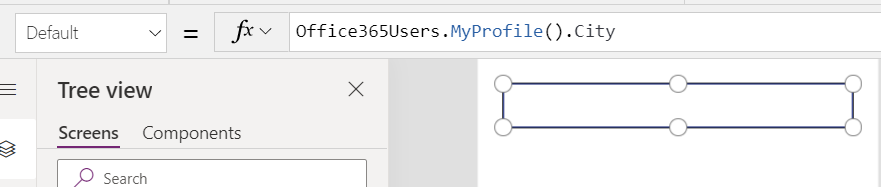
For the My Profile method and its properties you won’t see such error, missing value will just not display:
Get Manager error in Power Apps can be displayed in two versions for User as there are two methods V1:

V2:

Started to play with various functions in Power Apps but after hour without luck, decided to check documentation, link to it here
In the session of the Known Issues and Limitations I could read:
Get manager action returns “No manager found for the specified user”.
This happens when the user does not have a manager configured in AAD. Learn how to update an AAD user’s profile to configure a manager here.
I was quite puzzled that the only action which organization could do it to update their AAD with missing data. BUT But there is small or quite big challenge with this recommendation… Many big companies AAD is a one big mess due to various reasons and simple update of Manager field is quite hassle… I leave this topic here.
Important thing is that Users were waiting for the solution of course I could disable the option to pre-populated Manager Display Name and Email but that was no ideal as solution was aiming to save the time and effort required to provide repetitive data…
Solution
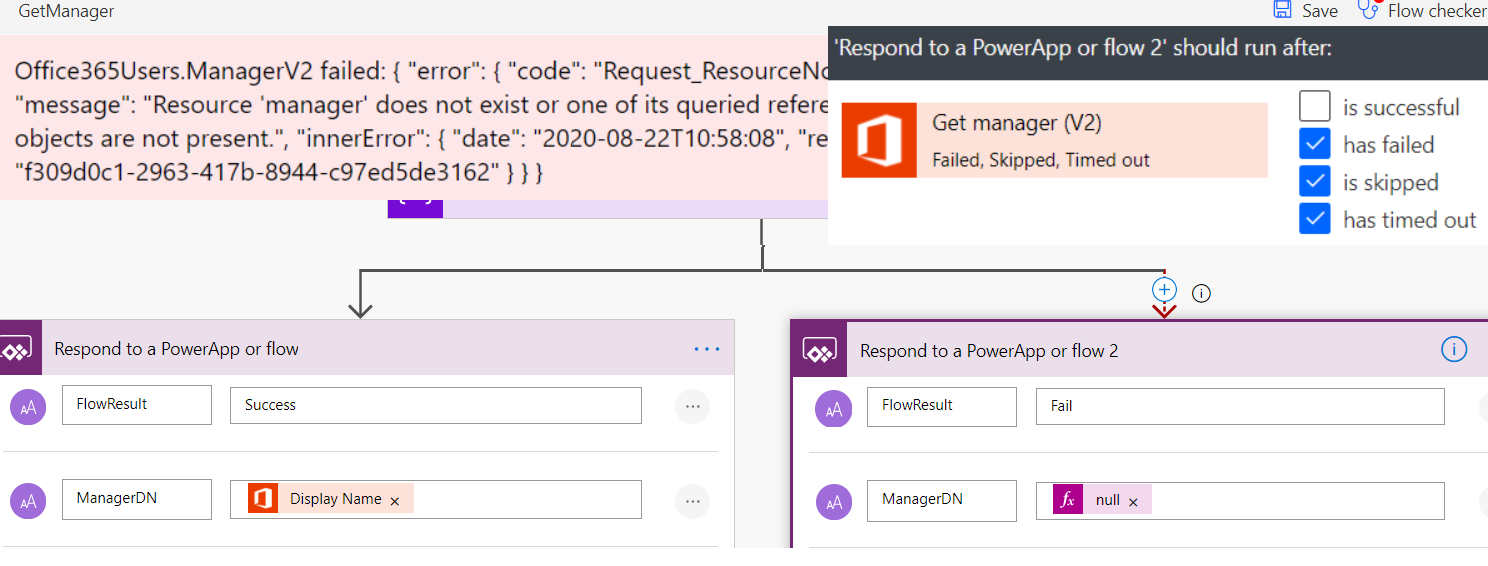
As always for me Power Apps goes hand in hand with Power Automate. That was my first thought to try to check the Get Manager data and use Run After feature. Idea was simple to return Success or Fail depending on the result. The Flow to handle Get Manager error in Power Apps is not fancy but it is doing the work:
Flow configuration

First Action of course Power Apps trigger next Initialize of the variable to store information about User Email/UPN for whom I want to Get Manager data:

HINT
I always use Initialize variable and connect them with Ask in Power Apps to later on have nice display of Flow required properties.
Next Get Manager V2 action where I provide variable data and last bit is the configuration of Respond to PowerApp or flow (Where Flow part is very interesting and I hope to cover it as some point in time.)

Left Respond is configured normally with three output properties:
- FlowResult – will represent if Manager metadata are found or not
- ManagerDN – Display Name of Manager
- ManagerEmail- Email of Manager
Of course in yours configuration you might want to return more properties.
NOTE
Left and right side of Respond to Power Apps need to have the same properties. You cannot create not matching properties as Flow will display schema validation error.
To configure right branch:
- Click three dots menu on first Respond and click Copy to my clipboard
- Next add parallel branch above Respond and paste copied action
- Click three dots menu on new Respond Action and click Configure run after
- Uncheck “is succesful” and check rest of the options

- Last bit is to change FlowResult to Fail and add null values to ManagerDn and ManagerEmail properties:

Done now remaining part is to add Flow to Power Apps.
Power Apps configuration
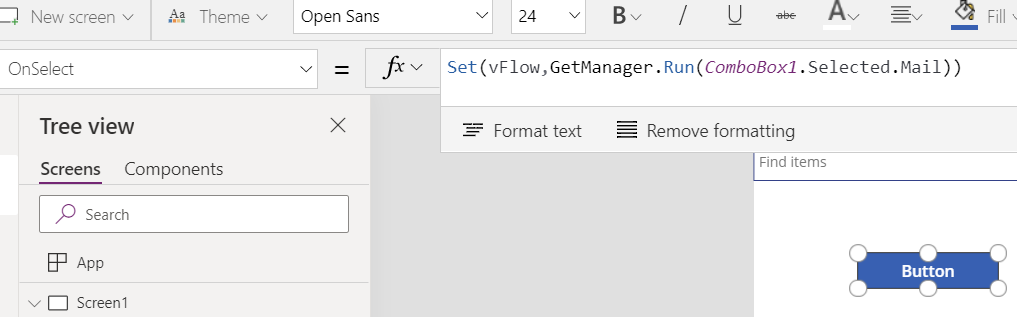
Configuration in the App is simple for demonstration I connected it with button but you can use other controls or properties.
HINT
OnStart of App wont allow you to add Flow to it.
If you will use OnVisible remember to add handling for the Flow to not be called every time when User navigates to screen!
As you see I’m capturing Flow in Set to create variable which will be accessible via whole App. With that ready I can just use the values from variable in other controls:
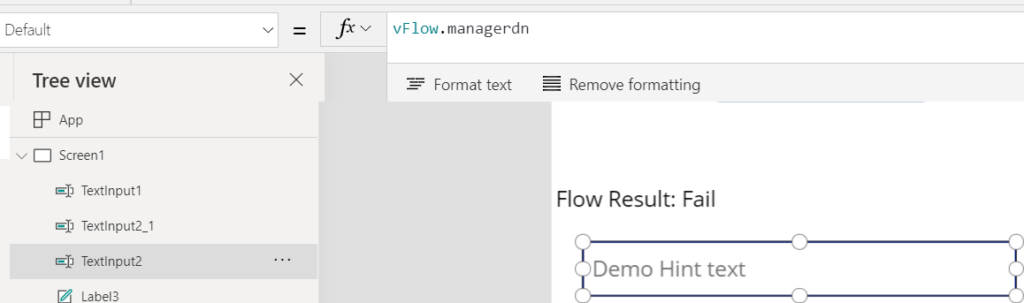
What were important for me if the Flow wont find Manager details and return null the Hint text will still display which is very small but nice UX.
Considerations
Get Manager in Power Apps Flow is very simple solution and I’m aware about this. Yet I thought to firstly address the key idea and then maybe build on the top of it but you can think about addressing following things for sure:
- Use Solution and Child Flow so User does not need have access to Office 365 Users connector
- Detection of the external guest accounts can result in different actions
- After executing right branch – Manager data missing ticket or email to IT team could be send with request to add missing data
- Run after can be configured to act differently depending on the type of error (maybe here it is not so important as in the case of Approvals)
Conclusion
It is very bad UX when after App start User will see error especially when it is 404… Even if we as the Maker knowns that User can still type in value it is not good left User with such experience. Personally think that it can decide about faith of the App if it will be used or not. More it can affect Users experience of the whole Power Platform and discourage them… Maybe I’m here a little bit dramatic but I always prefer to resolve such issues if can.
Hope this Flow will be useful for you and it is the first one which I decided to share with community, you can find my Flow here
As always thanks for reading and apricate all comments.