Power Automate without loop
Power Automate without loop
Power Automate without loop is the post in which I wanted to focus on the techniques which are allowing to remove the loop from Flows. It is increasing readability and speeding up Flows it is also good for performance. And it helped me to take “Flow game” to the next level.
Update at October 2021:
I added the section to explain why Power Automate is adding the loop when Approval is used, hope this will be useful for beginner Power Automaters 🤩
Update at September 2020:
Due to changes in Power Automate I decided to update the content of this post the concept remains the same and currently both ways to write formulas are working but wanted to be aligned with what you can see in Designer.
Additionally, added navigation and one more function.
Navigation
Challenge description:
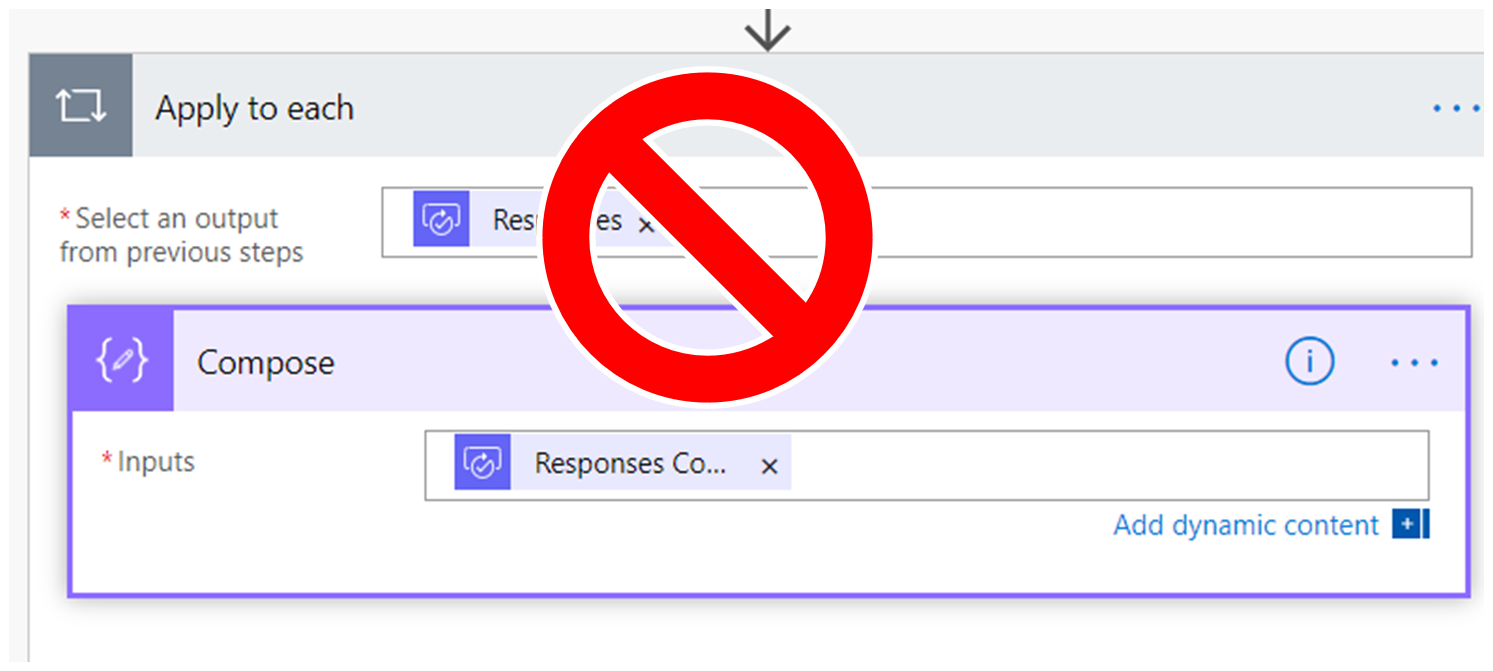
First trigger to write following post was my observation that Power Automate designer adds Apply for Each (loop) even if it is not required (from our perspective):
- in Approval action even if we assign single Approver/User
- when we use Get Items or Get files (properties only) but filtering results for single result

Second was query from Power Automate forum:

Third reason and the most important one is of course performance I’m always tried to make sure that process is not only working but it is performant. In Power Automate Loop or to many loops can easily drastically affect run/execution time.
Why Power Automate is adding the loop?
I had an interesting chat with a person who is at the beginning of the Power Automate journey. Base on the discussion, I think it is adding a lot of value to explain why a loop Apply to Each is added to the configuration.
Firstly, let’s see the output of the Approval action. After execution, you will get access to various properties I’m interested in Responses:

The square brackets characters at the beginning and at the end are representation of the array. It means that every type of the Approval which will be selected, the Responses ALWAYS are returned as the array. Even if there is only one item there.
The same principle applies for Get items.
In conclusion of this section, loop is added based on how responses of Power Automate actions are designed. It is making the sense during the development process but might be confusing for Users (at least initially).
Resolution
In Power Automate as Makers we have a lot of flexibility thanks to the functions and ability to work with array’s / objects content. Thanks to this two factors we can remove the loop. In this post I will show two methods:
- First function
and - “Location” of item in array
As this post is quite long, let me give you brief introduction to the content:
- Firstly will show, how to work with First function and Approval action
- Secondly I will show how to apply First function for Get Items
- Next Bonus how to use Empty function in your Get Items to drive behavior of your Flow
- Lastly you will see more advance technique of using the index of the item in array
The main assumption is that the action will return one item you can use.
1.) First function
Hero of this section is the First function below you can find the link to its reference. We will use it by getting the item from collection and then “telling” workflow engine which property we want to extract.
Return the first item from a string or array.
Approvals
OLD
First(body('Approval')?['responses'])?['comments']
NEW
First(outputs('Approval')?['body/responses'])?['comments']
As you can compare the formula slightly changed. You now can to refer to OUTPUTS not directly to BODY of the Action.
First(outputs('Approval')?['body']?['responses'])?['comments']Above notation will also work. Thanks to John Liu for pointing that out.
How to get the values of the above function? Let’s do that in baby steps.
When you will look again in the auto generated loop you will see information:

If you select the Responses field and copy it to expressions you should see:
OLD
@body('Approval')?['responses']
NEW
@{outputs('Approval')?['body/responses']}
HINT
Change the name of the Action which you want to use in the expression to make your life easier.
Instead of Start and wait for approval you can use simply Approval.
That would be the first part of what we need. The Responses object/collection. Second part is that you need to know what field we want to extract:

Let’s pick up Responses Comments:

You should be interested only in the last part of the above dynamic filed, remember only value of the last square brackets [‘comments’]. You are taking only this part as items(‘Apply_to_each’)? refers to the loop.

Remaining part is to go to action where we will store our result. I will use Compose.
NOTE
I’m using here Compose action but in your workflows consider the proper naming of your actions and don’t forget about Variables.
Change to Expression tab and add all elements of our puzzle:
- type function:
first( - remove first @{ and last } characters from copied value, you should now work only with:
OLD – body(‘Approval’)?[‘responses’]
NEW – outputs(‘Approval’)?[‘body/responses’] - close function:
) - add the field to extract:
?[‘comments’]
Result should look like this:
OLD

NEW

HINT
Add your expressions as comments to your actions it is much easier to work with your process later on.

Keep in mind that this approach will work not only for Approvals but for any other actions where you are working with an array of items. Example how to delay with Get Items from SharePoint.
Get Items (SharePoint)
Let’s see how Method will work with Get Items.
The main difference in Get Items is that you need to create proper Filter Query as Power Automate give us hint that it is ODATA type:

Working with this can be a bit challenging but practice makes perfect.
Great article about using Filter Query can be found in blog SharePains by Pieter Veenstra:
Microsoft Flow Filter query in SharePoint Get items
The other steps remain the same, so you need to find the fields which you want to extract.
NOTE
While using the Get Items action you are referring to value object and not responses – it is specific for Approval action.
Example:
OLD
First(body('Get_items')?['value'])?['ID']
NEW
First(outputs('Get_items')?['body/value'])?['ID']
2.) “Location” of item in array
Alternative for First function is array index. This approach will be for sure familiar for people which have background in programming. Basically what we want to do here is use the array index (starting with 0) to find location of items.
OLD
Example for Approvals:
body('Approval')?['responses']?[0]?['comments']
Get Items:
body('Get_items')?['value']?[0]?['ID']
NEW
Example for Approvals:
outputs('Approval')?['body/responses']?[0]?['comments']
Get Items:
outputs('Get_items')?['body/value']?[0]?['ID']
Both example will take the first array item. If you change [0] to [1] you will get access to the second item and soon on.
For the Power Automate beginners maker this approach might look weird but it opens doors to more powerful scenarios where we are working with big objects and still don’t want to use the loop.
Example of such situation might be getting User Display Name from Pepole picker which allows multiple selections:
OLD
body('Get')?['value']?[0]?['MultiPicker']?[0]?['DisplayName']
NEW
outputs('Get')?['body/value']?[0]?['MultiPicker']?[0]?['DisplayName']
Result:

Bonus empty function
I came across the cases when it is worth to use another function when you want to avoid the loop.
Imagine a scenario where you are filtering your data and you need to either create new item or update metadata of existing one but you cannot use GET ITEM…
After adding all necessary filter to your query you can do the following:
- Add Condition after Get Items
- In the Condition add function Empty
OLD
Empty(body('Get_items')?['value'])
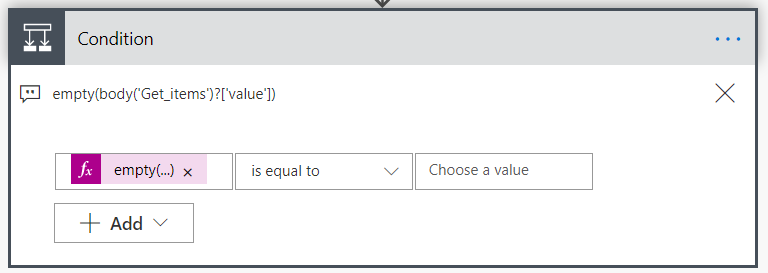
NEW
Empty(outputs('Get_items')?['body/value'])

Now for you YES path you know that there is not such item yet so you can go and Create it.
For NO path you can update item and to get the ID of it use the First function approach.
Bonus length function
New section from Update at September 2020
For the same scenario so to check if the item exist or not you can use an alternative approach except empty function and it is length.
Length function returns the number of items in collection, so if we are looking for the item and the result of the function will be 0 that means the item does not exist, and we can carry on and create a new element.
Example:


Summary
With presented methods you can create Flows in Power Automate without loop to make it easier to maintain and executions of flows finish quicker.
It is also good for performance which should be always in Makers mind.
Final disclaimer I’m not loop hater just prefer to use them when it is needed only.
Initially I felt that this will be short post. If you survive so far thank you for that and hope this information will help you during your Power Automate journey.
References
If you are interested in this topic you should check also:
Avoid unwanted apply to each steps in Power Automate by Pieter Veenstra
4 thoughts on “Power Automate without loop”
Comments are closed.
Thank you!!! That has helped me immensely!!
Thanks Luke, glad to read that I manage to help you 🙂