SharePoint lookup vs Power Apps Combo box
SharePoint lookup vs Power Apps Combo box
Decided to write this quick post after providing assistance with one of the Power Apps group challenges.
Challenge
Challenge was about the SharePoint connected Form where Creator added couple lookup columns:
“It has several drop-downs that are lookup fields in other tables. The lookup field only displays the ID but wondering if I can pull in other fields.”
Part of the group request
The first thing which was in my mind was the Combo box as it allows to display more than one field. But when I thought that everything was setup as it should the value after Submit Form did not display in the SharePoint item…
Played with that for extra hour and finally grasped solution which consider worth to share to save some struggle to other people.
[Update: 03 Jan 2020]
Decided to make couple changes in the content of this post to make it easier to read and understand what and how it was done.
Setup
Will not go through the whole setup. Assumptions:
– SharePoint list is prepared with at least one lookup field
– Power Apps Form based on the SP list created
Generated Form
Key element here is the way how the lookup fields is configured automatically.
Data Card is the container for the Data Card Value when we are working Form generated by SharePoint.
First lets check the Data Card Value (DCV) properties:
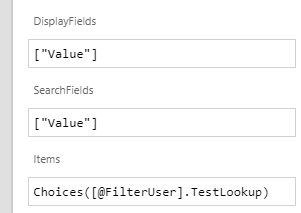
Items – Choices function pointing to the SP List Column which was based for the Form.
DisplayFields and SearchFields are using the Value from Choices function.
DCV is then not using the names of the columns of the lookup source but Choices function. That information will be main element of what we need to consider to update SP list correctly.
Data Card properties:
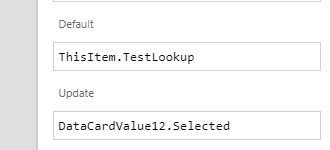
Default – ThisItem.<Lookup column name>
The DCV will have the Default property set as Parent.Default.
Update – DCV. Selected (Record type)
Add and configure Combo box
To add Combo box to the generated Form simply:
- go to Advanced of the Data Card and click Unlock to change properties
- from Input controls click Combo box.
- select Data Source and add your SP list which was based for lookup column
- click Fields and Edit button
- change layout to double
- select primary and secondary text
If everything is done correctly your control should display information is similar way:

Now logical next step would be to change Update property. After change to use combo box Selected the Form submit without errors. Yet lookup value is not saved in the SP list.
Final steps
NOTE:
This configuration is done for control with option to select only ONE item in combo box.
Lookup is empty although there is no errors…
The reason which I was able to find was connected with the Choices function: Link to documentation
Record created by the default control which is using Choices function have only two properties, Id and Value = what is displayed (it depends on what we selected in SP list column settings, for me it was Title).
In comparison record created by our new combo box contains ALL item properties, Created, Created By etc.
It seems that SharePoint does not like the full record and it is ignoring it during submission.
NOTE:
If somebody knows better solution or have more details about this challenge please let me know. As I would like to understand it fully.
To resolve the problem OnChange of the combo box I added following function:
UpdateContext({varUpdate:
{Id:ComboBox2.Selected.ID,Value:ComboBox2.Selected.Title}})
PRO TIP:
Used here the UpdateContext function but Set would also work. The reason behind UpdateContext is that I don’t need to move this variable to another screen and from performance perspective this function is faster.
Last part of configuration was change the Data Card Update property to new variable.
Summary
Was surprised by the Power Apps behavior that there was not error after adding the Combo box and changing the Update property. For the beginner Power Apps creators that could be a challenge to resolve this problem. Planing to update this post to handle also multiple value for lookup.
Let me know your thoughts if that was useful for you.
4 thoughts on “SharePoint lookup vs Power Apps Combo box”
Comments are closed.
I am not sure where you are getting your information, but great topic. I needs to spend some time learning much more or understanding more. Thanks for excellent information I was looking for this information for my mission.
Thanks, just faced this problem during my work and decided to share it with community so other dont need to struggle so much 🙂
Happy that it helps
Hello David, you saved my day !!! Thank you so much 😉
Hello Pascal,
That is great to read 🙂 happy that it helped you:)